

In this guide (7 sections)
Most modern motherboards have four small lights near the RAMRAM (memory): Memory sticks: short-term working space the PC needs to run. They clip into slots next to the processor. More in our PC basics glossary → slots, labeled CPU, DRAM, VGA and BOOT. Brands call them different things (ASUS calls them Q-LEDs, MSI calls them EZ Debug LEDs, Gigabyte calls them Status LEDs), but they work the same way. If one stays on and the PC won’t start, it’s pointing you at the problem.
Quick fix
Find the light that stays on, then start with its most common fix:
- CPU: check the CPU power cableCPU power cable (EPS 8-pin): The 8-pin cable that powers the processor. It plugs in at the top-left corner of the motherboard. More in our Power supplies & cables glossary → (8-pin, top-left of the board) is fully in, with both halves of a 4+4 plug. Then check the BIOSBIOS (UEFI): The motherboard's built-in settings program, which starts the PC before Windows. You open it with Delete or F2 at startup. More in our Boot & BIOS glossary → supports your processorCPU (processor): The processor: the chip that does most of the computer's thinking. It sits under a cooler on the motherboard. More in our PC basics glossary →.
- DRAM: reseat the RAM until both clips click, use the slots the manual recommends, and wait 2–3 minutes. If that fails, try one stick at a time.
- VGA: check the graphics card’s power cablesGraphics card power cable (PCIe): The power cables that plug directly into the graphics card. Most cards need one or more, as well as the slot. More in our Power supplies & cables glossary → and seating, and that the monitor is plugged into the card, not the motherboardMotherboard: The large main circuit board inside the PC that every other part plugs into. More in our PC basics glossary →.
- BOOT: the hardware passed. The PC can’t find a drive to start from. Check the drive is connected and selected in the BIOS boot orderBoot order: The list in the BIOS that decides which drive the PC tries to start Windows from first. More in our Boot & BIOS glossary →.
Want to see how others fixed it? Read 3 real cases from PC forums.
How the debug lights work
Every time you turn on the PC, the motherboard checks its main parts in a fixed order: processor, memory, graphics, then a drive to boot from. Each light switches on while its check is running and goes off when it passes.
That’s why a light flickering on for a moment during startup is completely normal. Only a light that stays on means the board got stuck there. It also means everything before that light passed: a VGA light tells you the CPU and RAM are at least being detected.
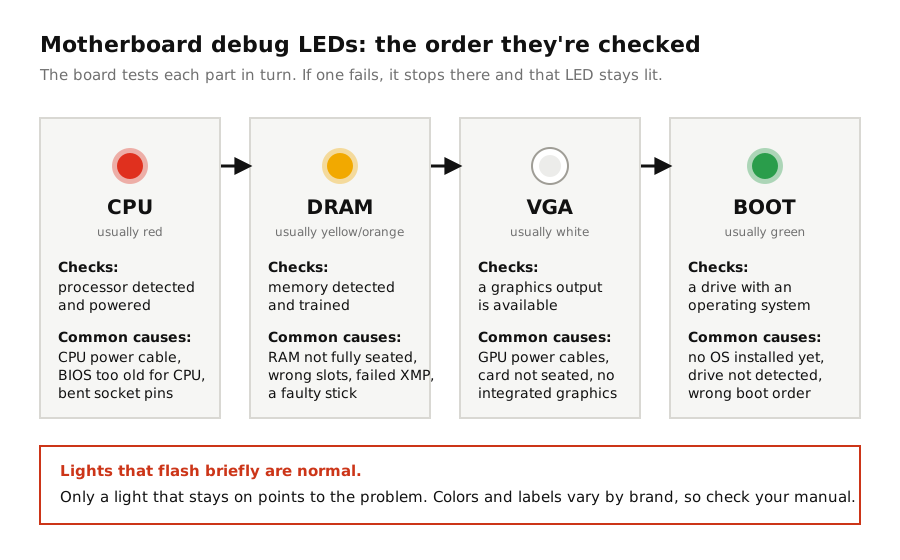
| Light that stays on | What it means | Most common causes |
|---|---|---|
| CPU | Processor not detected or not initializing | CPU power cable, BIOS too old for the CPU, bent socket pinsCPU socket and pins: The square slot where the processor sits. Its tiny pins bend easily, which can stop the PC from starting. More in our Boot & BIOS glossary →, cooler issue |
| DRAM | Memory not detected or failed training | RAM not fully seated, wrong slots, failed XMPXMP / EXPO: A one-click BIOS setting that runs RAM at its advertised faster speed. If unstable, the PC may not start. More in our RAM & storage glossary →/EXPO, faulty stick |
| VGA | No working graphics output | GPU power cables, card not seated, CPU without integrated graphicsIntegrated graphics: Graphics built into some processors, which let you use the motherboard's video ports without a graphics card. More in our Graphics cards & display glossary → and no card |
| BOOT | No bootable drive found | No operating system yet, drive not connected or detected, wrong boot order |
| Two or more at once | Board stuck early, or a power issue | Power cables, BIOS support for the CPU, a short (try outside the case) |
A word of caution: the lights point you to the area where startup stopped, not always the exact faulty part. A DRAM light can be caused by an unsupported CPU, and a VGA light by a power cable. Use them as the starting point, not the final verdict.
CPU light
The board can’t get the processor running.
- Check the CPU power cable. It’s the 8-pin connector at the top-left of the board. If it’s a 4+4 split plug, both halves must be in.
- Check BIOS support. A newer processor may need a newer BIOS than your board shipped with. See how to check the CPU support list and update without a working CPU.
- Check the cooler. Uneven or excessive mounting pressure can cause problems. Loosen it and tighten the screws in a cross pattern.
- Inspect the socket. If you’ve just installed the CPU, look for bent pins in the socket (Intel) or on the CPU (older AMD), using a flashlight at an angle.
DRAM light
The most common light, and usually the easiest to fix.
- Reseat the RAM until both clips snap shut. It takes more force than most people expect: here’s how to do it properly.
- Use the slots the manual recommends. With two sticks, that’s usually A2 and B2RAM slots (A2 / B2): The memory sockets on the motherboard. With two sticks, the manual usually recommends the 2nd and 4th slots. More in our RAM & storage glossary →.
- Wait for memory trainingMemory training: A test the PC runs on new RAM during the first startup. The screen can stay black for a few minutes. More in our RAM & storage glossary →. After new RAM, a BIOS updateBIOS update: A new version of the motherboard's built-in software, often needed to support newer processors. More in our Boot & BIOS glossary → or a reset, the first boot can take a few minutes with the DRAM light on.
- Clear the CMOSClear CMOS: Resetting the motherboard's settings back to factory defaults. It doesn't delete your files. More in our Boot & BIOS glossary → if the light appeared after enabling XMP or EXPO. Three ways to do it.
- Test one stick at a time. If one boots and another doesn’t, you’ve found a faulty stick.
- Check compatibility. Your board’s memory support listQVL (memory support list): The motherboard maker's list of RAM kits they've tested and confirmed to work with that board. More in our RAM & storage glossary → (QVL) shows tested kits. A kit that isn’t on it may still work, but if it doesn’t, a BIOS update can help.
VGA light
The board can’t find working graphics.
- Check the graphics cardGPU (graphics card): The graphics card: the part that creates the picture you see on the monitor. More in our PC basics glossary →’s power cables. Every 6-pin, 8-pin or 16-pin socket on the card must be connected and fully pushed in. More on that in our no display guide.
- Reseat the card in the top PCIe slotPCIe slot: The long slot on the motherboard where the graphics card plugs in. It has a small latch that clicks. More in our Graphics cards & display glossary → until the latch clicks.
- Check where the monitor is plugged in. With a graphics card, use its ports, not the motherboard’s.
- Check if your CPU has integrated graphics. Intel “F” models and many Ryzen processors have none. Without a graphics card, they will always show a VGA light.
BOOT light
This one is good news: the processor, memory and graphics all passed. The PC just can’t find something to start from.
- New build? You haven’t installed an operating system yet. A BOOT light is normal until you do. If you plug in a monitor, you should be able to reach the BIOS.
- Check the drive. Make sure the SSDSSD / drive: The storage drive that holds Windows and your files. An M.2 SSD is a small stick that screws onto the motherboard. More in our PC basics glossary → or hard drive is connected (M.2 drives screwed down, SATA drives with both data and power cables).
- Check the boot order. Enter the BIOS (usually Delete or F2 at startup) and make sure the drive with Windows is first.
No lights at all?
If none of the lights come on, the board isn’t starting its checks at all. That usually means it isn’t getting power or the power button isn’t connected properly. Our guide on a PC that won’t turn on covers that, starting with the front-panel connector.
Real cases: what other users ran into
These are real reports from PC forums, summarized in our own words, with a link to each original thread.
Real caseASRock B760 Pro RS · 2x16GB DDR5-6000FixedDRAM light caused by one faulty stick
A PC that had been booting slowly stopped booting altogether, with the DRAM light solid red and no picture. Moving both sticks to different slots changed nothing. Following a moderator’s advice, the owner tested one stick at a time. A single stick booted into the BIOS, and testing each one in turn showed that all the slots were fine but one of the two sticks was faulty.
Takeaway: if moving the RAM around doesn’t help, test one stick at a time. It’s the quickest way to find a bad module. See the DRAM light steps.
Source: ASRock Forum
Real caseRyzen 5 3600 · MSI B450I Gaming Plus ACFixedVGA light with no graphics card installed
On a first build tested with just the CPU and one RAM stick, the white VGA light stayed on and the monitor, plugged into the motherboard’s HDMI port, showed nothing. Clearing the CMOS and moving the RAM didn’t help. Once the graphics card was installed, the light moved on to BOOT, but the screen was still black. Forum members explained that the Ryzen 5 3600 has no integrated graphics, so the monitor had to be plugged into the graphics card. That fixed it, and the owner confirmed it.
Takeaway: the light moving from VGA to BOOT showed real progress. A BOOT light with no picture usually means a display connection problem, or simply no operating system yet. See the VGA light and BOOT light steps.
Source: BleepingComputer
Real caseROG Strix B850-F WiFi · Ryzen 7 7700X · 2x8GB DDR5-5600FixedAn orange DRAM light that wasn't about the RAM
A new build started for 3–5 seconds and shut down, with an orange light the owner took to mean a RAM problem. Moving the RAM, using a single stick, stripping it down to CPU and RAM and attempting a BIOS flash changed nothing. Forum members suggested checking the CPU power cable and testing outside the case. The real cause: the motherboard had been screwed directly to the case without standoffsStandoffs: Small metal spacers that hold the motherboard slightly above the case, so it doesn't touch the metal. More in our Boot & BIOS glossary →, causing a short. With standoffs fitted, it all worked.
Takeaway: the light shows where startup stopped, not always why. If the obvious fixes for a light don’t help, look at power and shorts too. See our guide on a new build that won’t turn on.
Source: ASUS ROG Forum
Frequently asked questions
Is it normal for debug lights to flash during startup?
Yes. Each light comes on briefly while its check runs. Only a light that stays on means there’s a problem.
Can a DRAM light mean the CPU is the problem?
Sometimes. The memory controller is inside the CPU, so an unsupported or faulty processor, or bent socket pins, can show up as a DRAM light. Rule out the RAM itself first, since that’s far more common.
What’s the difference between debug lights and Q-codes?
Debug lights show four broad areas. A Q-codeQ-code: A two-digit code shown on a small display on some motherboards. The manual explains what each code means. More in our Boot & BIOS glossary → display, found on more expensive boards, shows a two-digit code with much more detail. Look up the code in your motherboard manual.
My BOOT light is on but I can get into the BIOS. Is something wrong?
No. It just means the PC can’t find an operating system to load. Install Windows, or check the drive is connected and first in the boot order.
Do all motherboards have debug lights?
Most mid-range and high-end boards from the last several years do. Some budget boards don’t. In that case, a small speaker on the board’s speaker header gives you beepBeep codes: Patterns of beeps the motherboard makes when it finds a problem during startup. The manual lists what they mean. More in our Boot & BIOS glossary → codes instead.
RigClinic publishes practical, step-by-step guides to diagnosing and fixing PC hardware problems, checked against manufacturer documentation and kept up to date. How we write our guides


Did this fix work for you?
Tell other readers what worked, what didn't, and which hardware you have. Comments use GitHub Discussions, so you'll need a free GitHub account to post.
Loading comments connects to giscus.app and GitHub. See our privacy policy. Please keep it friendly and on topic; spam and off-topic comments are removed.