

In this guide (10 sections)
- What exactly happens when you press the button?
- 1. Check the power supply switch and the wall
- 2. Check the front-panel power button connector
- 3. Push in both motherboard power cables
- 4. Test without the case’s power button
- 5. Check the power supply itself
- 6. Check for a short circuit against the case
- 7. Check the CPU, cooler and RAM
- 8. When it might really be a faulty part
- Real cases: what other users ran into
You’ve just finished your first build. You press the power button and… nothing. No fans, no lights, or maybe a flicker and then silence. It’s one of the worst moments in PC building, but don’t start a return yet: in the vast majority of cases, a new build that won’t power on comes down to a cable or connector, not a dead part.
Quick fix
Check these four things first. They cover most “dead” new builds:
- Turn on the power supplyPSU (power supply): The power supply: the box that takes power from the wall and feeds every part through cables. More in our PC basics glossary →. The switch on the back of the PSU must be on “I”, not “O”, and the wall socket or power strip must be on.
- Check the power-button cable on the motherboardMotherboard: The large main circuit board inside the PC that every other part plugs into. More in our PC basics glossary →’s front-panel headerFront-panel header: A small group of pins on the motherboard where the case's power button, reset button and lights connect. More in our Boot & BIOS glossary →. It must be on the two PWR SW pins, not on the reset pins or one pin off. See the diagram below.
- Push in both motherboard power cables: the wide 24-pin24-pin power cable: The widest cable from the power supply. It plugs into the right edge of the motherboard and powers the board. More in our Power supplies & cables glossary → and the CPU’s 8-pin at the top-left. Both need more force than you’d expect.
- Start the board without the case button by touching the two power-switch pins with a screwdriver tip. If it starts, the problem is the case button or its cable.
Fans spin but no picture? Then the PC does turn on, and you need our guide on a PC that turns on but has no display.
Want to see how others fixed it? Read 3 real cases from PC forums.
What exactly happens when you press the button?
The details narrow the problem down a lot:
| What happens | Most likely cause | Where to look |
|---|---|---|
| Absolutely nothing, no lights anywhere | No power reaching the board, or the button isn’t connected | Checks 1–4 |
| Motherboard lights are on, but the button does nothing | Power-button cable on the wrong pins, or a faulty case button | Checks 2 and 4 |
| Fans twitch for a split second, then stop | A missing CPU power cableCPU power cable (EPS 8-pin): The 8-pin cable that powers the processor. It plugs in at the top-left corner of the motherboard. More in our Power supplies & cables glossary →, or a short circuitShort circuit: Electricity taking a path it shouldn't, for example through the case. The PC then shuts off to protect itself. More in our Boot & BIOS glossary → | Checks 3 and 6 |
| Turns on for a second or two, shuts off, repeats | A short, the CPU power cable, or a cooler/CPU issue | Checks 3, 6 and 7 |
| Fans spin and stay on, but no picture | It does turn on. It’s a display or POSTPOST: Power-On Self-Test: the quick check the PC runs every time you switch it on, before Windows loads. More in our Boot & BIOS glossary → problem | No display guide |
1. Check the power supply switch and the wall
It’s the most embarrassing cause, but one of the most common. The power supply has its own switch on the back, next to the power cable, and it’s often off when the PSU comes out of the box.
- Set the switch to I (on).
- Make sure the power cable is pushed fully into the PSU.
- Plug the PC directly into a wall socket you know works, not a power strip with its own switch.
2. Check the front-panel power button connector
The case’s power button connects to the motherboard through a tiny two-pin cable labeled POWER SW or PWR SW. It goes on the front-panel header, usually at the bottom-right of the board. It’s very easy to put it on the reset pins, or one pin off.
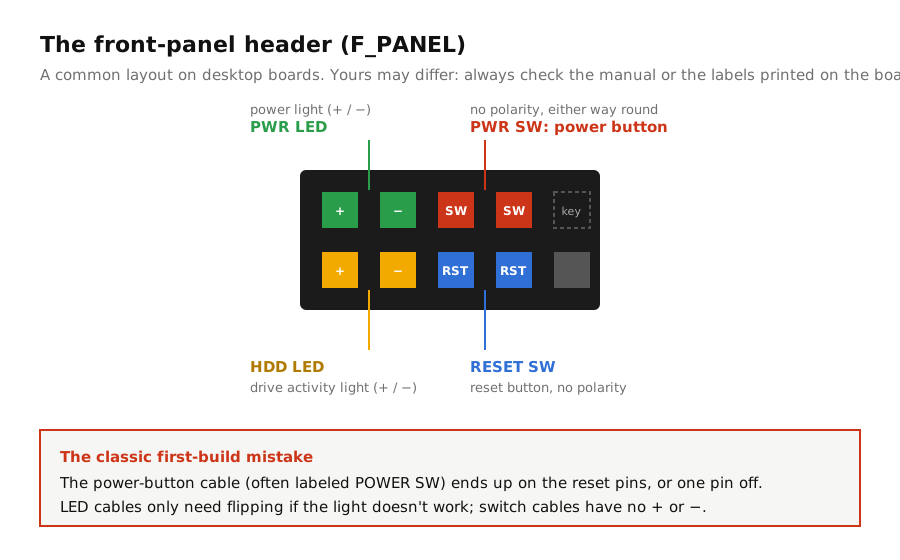
How to check:
- Find the front-panel diagram in your manual, or the tiny labels printed on the board next to the pins.
- Make sure POWER SW is on the PWR SW pins. Switch cables have no polarity, so either way round works.
- LED cables (POWER LED, HDD LED) do have a + and −, but getting them wrong only stops the light working. It won’t stop the PC turning on.
3. Push in both motherboard power cables
A new build needs two separate power cables to the motherboard, and both are stiff:
- 24-pin ATX (right edge of the board): push until the clip clicks over the tab. It’s common to leave it slightly raised on one side.
- 8-pin CPU / EPS (top-left, near the CPU): often a 4+4 split plug, and both halves must be in. Without it, the board may light up but the PC won’t start or will turn off immediately.
If your power supply is modularModular power supply: A power supply whose cables detach. Each cable must be plugged in at both ends: the PSU and the part. More in our Power supplies & cables glossary →, check the other end too: each cable must be plugged into the PSU, in the socket labeled for it (CPU, PCIe, MB). Some compact PSUs split the motherboard cable into two plugs at the PSU end (for example 18-pin + 10-pin), and both must be connected.
4. Test without the case’s power button
This test tells you whether the problem is the board or the button.
- Unplug the POWER SW cable from the front-panel header.
- With the PSU switched on, briefly touch the two PWR SW pins together with a metal screwdriver tip.
- If the PC starts, the board and power supply are fine. The problem is the case button, its cable, or where it was plugged in.
Touch only those two pins. It’s a low-voltage signal and the same thing the button does, but don’t let the screwdriver slide across other pins.
5. Check the power supply itself
If shorting the pins does nothing, check whether the power supply works. The simplest check is a paperclip testPaperclip test: A quick check that a power supply turns on by itself, using a bent paperclip on its 24-pin plug. More in our Power supplies & cables glossary →: with the PSU unplugged from everything except the wall, a bent paperclip connects the green “PS_ON” wire to a black ground wire on the 24-pin connector, and the PSU fan should spin. Some PSUs don’t spin their fan at low load, so it isn’t conclusive. Many PSUs also come with a tester plug, which is safer and easier. Follow your PSU maker’s instructions.
If the PSU doesn’t respond at all, contact the seller.
6. Check for a short circuit against the case
If the PC turns on for a split second and stops, or works outside the case but not inside, something is probably touching where it shouldn’t:
- Standoffs: the small brass spacers under the motherboard must only be where the board has a screw hole. An extra one under the board can short it.
- Loose screws that fell behind the board.
- The I/O shieldI/O shield: The thin metal plate around the motherboard's rear ports, fitted into the back of the case. More in our Boot & BIOS glossary →: its little metal tabs can poke into a USB or network port.
The surest test is to take the board out and run it on its cardboard box with just the CPU, cooler, one RAM stick and power supply connected. Our minimal boot test shows exactly what to keep and what to unplug.
7. Check the CPU, cooler and RAM
Less common on a dead PC, but worth a look if nothing above helped:
- The CPU cooler’s fan should be plugged into the header labeled CPU_FAN. Without it, many boards show a CPU fan error and stop before finishing startup.
- RAM must be fully seated, with both clips closed.
- If the PC turns on but shuts off again after a few seconds, check the cooler’s protective plastic film was removed and the cooler is making full contact.
8. When it might really be a faulty part
If all of the above checks out, a faulty power supply or motherboard becomes the main suspect. Swapping in a known-good power supply is the easiest test. If that doesn’t help, contact the store: a new part that’s dead on arrival is replaced under warranty.
Real cases: what other users ran into
These are real reports from PC forums, summarized in our own words, with a link to each original thread.
Real caseASUS ROG Strix B650E-IFixedThe button was on the wrong pins
The PC had worked a few days earlier, but after the owner took it apart to tidy the cables, it wouldn’t turn on. The lights on the back panel were on, yet the power button did nothing, and neither did shorting what he thought were the power pins. He rechecked every connector and cleared the CMOS. The cause was as simple as it gets: he was using the wrong pins. Used to his previous board’s layout, he hadn’t cross-checked the new board’s manual.
Takeaway: front-panel layouts differ between boards, even from the same brand. Always check the manual, even if you’ve built PCs before. See check 2.
Source: ASUS ROG Forum
Real caseNew build (specs not listed)FixedNo power at all, but the PSU was fine
A brand-new PC showed no sign of life: no fans, no lights. A paperclip test proved the power supply worked. A forum member noticed in the photos that a connector didn’t look fully seated. The owner unclipped and reconnected the case’s power switch connector and reinstalled the power supply, after which the PC started and worked fine.
Takeaway: when the power supply works but the PC doesn’t, the problem is between the button and the board. Reconnect everything properly before suspecting the motherboard. See check 4.
Source: HEXUS Forums
Real caseROG Strix X470-I · Ryzen 7 2700 · RTX 2080 Ti · Corsair SF750FixedOne cable plugged in at the board, but not at the PSU
A compact build refused to power on at all. The owner tried almost everything: a paperclip test (which passed), a second motherboard, a second power supply, different memory setups, clearing the CMOSClear CMOS: Resetting the motherboard's settings back to factory defaults. It doesn't delete your files. More in our Boot & BIOS glossary →, shorting the power pins and testing outside the case. The problem turned out to be at the power supply end: the PSU’s motherboard cable is split into an 18-pin and a 10-pin plug, and the 10-pin one wasn’t plugged into the PSU. Once it was, the board “lit up like a Christmas tree”.
Takeaway: on a modular power supply, check both ends of every cable, especially on compact SFX units with split connectors. See check 3.
Source: SFF.Network Forum
Frequently asked questions
Why won’t my new PC turn on at all?
Most often the power supply switch is off, the power-button cable is on the wrong pins, or one of the two motherboard power cables isn’t fully seated. Those three cause the majority of “dead” new builds.
Does it matter which way round the power switch cable goes?
No. The power and reset switch cables have no polarity. Only the LED cables have a + and −.
How do I know if my power supply is dead?
Short the board’s power-switch pins with a screwdriver. If nothing happens, try the PSU’s tester plug or a paperclip test, following the manufacturer’s instructions. If the PSU fan never spins, contact the seller.
My PC turns on for a second and then shuts off. Why?
Usually a missing CPU power cable (the 8-pin at the top-left), a short circuit against the case, or a CPU cooler that isn’t making proper contact. Check the cable first.
Can I damage my PC by shorting the power pins?
Not if you only touch the two power-switch pins. That’s exactly what the case button does. Take care not to touch any other pins with the screwdriver.
RigClinic publishes practical, step-by-step guides to diagnosing and fixing PC hardware problems, checked against manufacturer documentation and kept up to date. How we write our guides


Did this fix work for you?
Tell other readers what worked, what didn't, and which hardware you have. Comments use GitHub Discussions, so you'll need a free GitHub account to post.
Loading comments connects to giscus.app and GitHub. See our privacy policy. Please keep it friendly and on topic; spam and off-topic comments are removed.