

In this guide (10 sections)
- First, what exactly is happening?
- 1. The monitor is on the wrong input or the cable is loose
- 2. The cable is plugged into the wrong place
- 3. The PC is still training its memory
- 4. A RAM stick isn’t fully seated
- 5. The graphics card isn’t getting power
- 6. A BIOS setting is getting in the way
- 7. The BIOS is too old for your processor
- 8. A part has actually failed
- Real cases: what other users ran into
Your PC powers on. Fans spin, the RGB lights up, maybe you even hear the drives start. But the monitor stays black or shows “No signal”. Before you assume a part has died, take a breath: this is one of the most common PC problems, and the cause is usually simple.
Quick fix
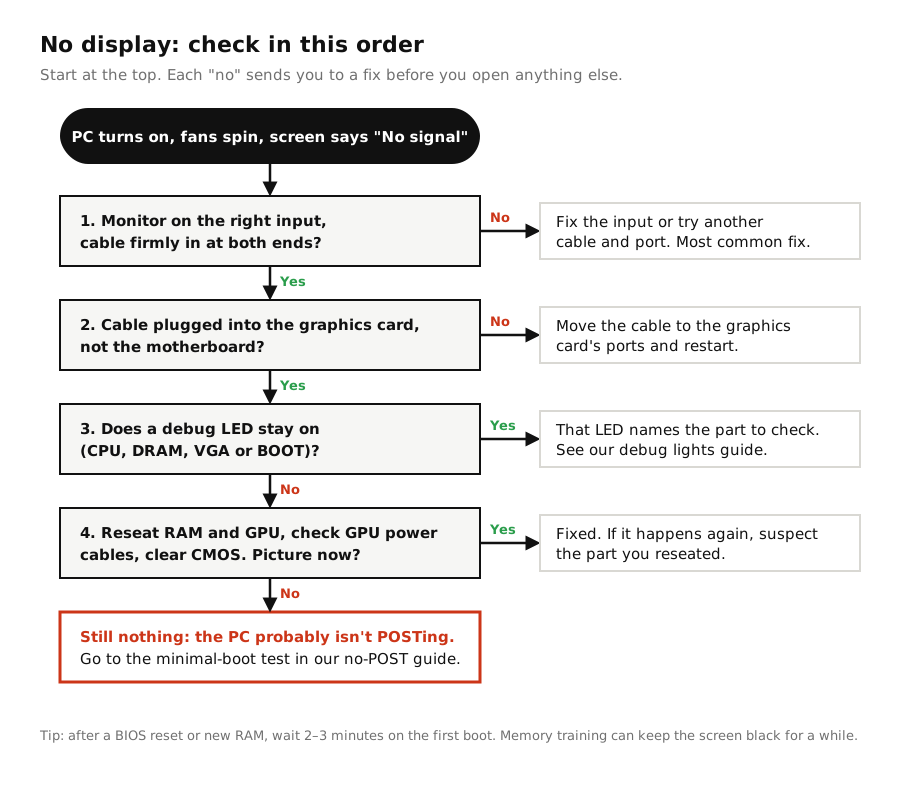
Try these four things in order. They cover the most common causes:
- Check the monitor end. Make sure the monitor is set to the right inputMonitor input: Which socket the monitor is "listening" to (HDMI 1, HDMI 2, DisplayPort). It's changed with the monitor's buttons. More in our Graphics cards & display glossary → (HDMI 1, DisplayPort…) and the cable is pushed fully in at both ends. If you can, try a different cable.
- Plug the monitor into the graphics cardGPU (graphics card): The graphics card: the part that creates the picture you see on the monitor. More in our PC basics glossary →, not the video ports on the motherboardMotherboard: The large main circuit board inside the PC that every other part plugs into. More in our PC basics glossary →’s back panel. If you have a graphics card, those motherboard ports are usually disabled.
- Look at the motherboard’s debug lightsDebug lights: Four small lights on the motherboard (CPU, DRAM, VGA, BOOT). The one that stays on shows where startup got stuck. More in our Boot & BIOS glossary →. If one labeled CPU, DRAM, VGA or BOOT stays on, it tells you which part to check. See what each debug light means.
- Power off and reseat. Switch off the power supplyPSU (power supply): The power supply: the box that takes power from the wall and feeds every part through cables. More in our PC basics glossary →, then push each RAMRAM (memory): Memory sticks: short-term working space the PC needs to run. They clip into slots next to the processor. More in our PC basics glossary → stick firmly in until both clips click, and check the graphics card’s power cablesGraphics card power cable (PCIe): The power cables that plug directly into the graphics card. Most cards need one or more, as well as the slot. More in our Power supplies & cables glossary → are fully seated.
Just updated the BIOSBIOS (UEFI): The motherboard's built-in settings program, which starts the PC before Windows. You open it with Delete or F2 at startup. More in our Boot & BIOS glossary → or installed new RAM? Wait 2–3 minutes before doing anything. The first boot can stay black while the memory trains. See memory training.
Want to see how others fixed it? Read 4 real cases from PC forums.
If that didn’t solve it, keep reading. The first step is figuring out exactly what kind of “no display” you have, because “fans spin but nothing else” and “it beepsBeep codes: Patterns of beeps the motherboard makes when it finds a problem during startup. The manual lists what they mean. More in our Boot & BIOS glossary → at me” point to very different places.
First, what exactly is happening?
| What you see | What it usually means | Where to go |
|---|---|---|
| Fans spin, monitor says “No signal”, no lights stay on | A cable, port or input problem, or a loose part | Keep reading, start with cause 1 |
| A debug light (CPU, DRAM, VGA, BOOT) stays on | The motherboard is telling you which part failed its check | Debug lights guide |
| The PC beeps when you turn it on | The motherboard found an error before it could show a picture | PC won’t POST |
| Nothing happens at all, no fans or lights | It’s a power problem, not a display problem | PC won’t turn on |
| Picture works from the motherboard port, but not from the graphics card | The graphics card isn’t powered or seated properly | Cause 5 |
| You see the logo or BIOS, then black at Windows | A Windows or driverDriver: The software that lets Windows talk to a piece of hardware, like the graphics card. More in our Graphics cards & display glossary → problem, not hardware | Try Safe Mode or reinstall the graphics driver |
1. The monitor is on the wrong input or the cable is loose
It sounds too simple, but it catches a lot of people, especially after moving the PC or connecting a new monitor. Many monitors don’t switch inputs automatically. If the PC is on DisplayPort and the monitor is looking at HDMI, you get “No signal”.
How to check:
- Use the monitor’s buttons to cycle through each input manually.
- Unplug the cable at both ends and push it back in firmly. DisplayPort plugs should click.
- Try a different cable, and a different port on the graphics card.
- If you have another screen or a TV, test with that. It quickly tells you whether the problem is the PC or the monitor.
2. The cable is plugged into the wrong place
Your PC may have two sets of video ports: the ones on the motherboard’s back panel and the ones on the graphics card, lower down. When a graphics card is installed, the motherboard ports usually do nothing.
Fix: connect the monitor to one of the graphics card’s ports (the horizontal row near the bottom of the case).
It also works the other way round. Many processors have no integrated graphicsIntegrated graphics: Graphics built into some processors, which let you use the motherboard's video ports without a graphics card. More in our Graphics cards & display glossary →: Intel models ending in “F” (like the i5-12400F) and many AMD Ryzen chips, especially older models without a “G” in the name. With one of these, the motherboard’s video ports will never show a picture. You need a graphics card installed and the monitor plugged into it.
3. The PC is still training its memory
After you install new RAM, update the BIOS, reset it, or build a new PC, the motherboard runs a process called memory trainingMemory training: A test the PC runs on new RAM during the first startup. The screen can stay black for a few minutes. More in our RAM & storage glossary →. It tests the RAM at different settings to find what works. While it does that, the screen stays black, and on some boards the DRAM light stays on.
On modern DDR5 systems, this first boot can take anything from tens of seconds to a few minutes. Many people assume the PC is broken and switch it off halfway through, which simply restarts the process.
Fix: leave it alone for 2–3 minutes. If the picture appears, later boots should be much faster.
4. A RAM stick isn’t fully seated
This is one of the most common causes, especially on new builds. RAM needs much more force to insert than people expect. A stick can look installed, with one clip closed, while one end isn’t making full contact.
Fix:
- Switch off the power supply at the back and unplug it.
- Open both clips on the RAM slot, pull the stick out and push it back in with firm, even pressure on both ends until both clips snap shut.
- Check the manual for which slots to use. With two sticks, it’s usually the second and fourth slots from the CPU (often labeled A2 and B2RAM slots (A2 / B2): The memory sockets on the motherboard. With two sticks, the manual usually recommends the 2nd and 4th slots. More in our RAM & storage glossary →).
- If it still won’t display, try one stick at a time in the main slot. That also tells you if one stick is faulty.
5. The graphics card isn’t getting power
Most graphics cards need power cables from the power supply, as well as the slot on the motherboard. If a power cable is missing or half inserted, the card may light up and spin its fans but send nothing to the monitor.
How to check:
- Look at the top or end of the card for 6-pin, 8-pin or 16-pin (12VHPWR / 12V-2x6) sockets. Every one of them must be connected.
- Push each connector in until it clicks. 16-pin connectors in particular must be fully inserted, with no gap.
- If your power supply cable has two plugs on one cable (“daisy-chain”), use two separate cables for high-power cards if you have them.
- Make sure the card is fully seated in its slot and the slot latch has clicked.
6. A BIOS setting is getting in the way
Settings like a failed RAM overclock (XMPXMP / EXPO: A one-click BIOS setting that runs RAM at its advertised faster speed. If unstable, the PC may not start. More in our RAM & storage glossary → or EXPO), or a setting that sends video to the wrong output, can stop the PC from showing a picture. Resetting the BIOS to its defaults, known as clearing the CMOSClear CMOS: Resetting the motherboard's settings back to factory defaults. It doesn't delete your files. More in our Boot & BIOS glossary →, undoes them.
Fix: clear the CMOS. Many boards have a Clear CMOS button on the back panel; otherwise you use a jumper or remove the coin battery. We explain all three methods step by step in our no-POST guide.
Clearing the CMOS resets your settings. It does not undo a BIOS updateBIOS update: A new version of the motherboard's built-in software, often needed to support newer processors. More in our Boot & BIOS glossary →.
7. The BIOS is too old for your processor
A motherboard needs a BIOS version that knows your CPU. If you put a newer processorCPU (processor): The processor: the chip that does most of the computer's thinking. It sits under a cooler on the motherboard. More in our PC basics glossary → in an older board, the board may power on but never show a picture. The CPU light often stays on.
Fix: check your motherboard’s CPU support list on the manufacturer’s website. If you need a newer BIOS, many boards can update from a USB stick without a working CPU. See how to check BIOS support and use BIOS Flashback.
8. A part has actually failed
If you’ve worked through everything above, it’s time to consider a faulty part. The best way to find it is swapping:
- Graphics card: if your CPU has integrated graphics, remove the card and plug the monitor into the motherboard. If you get a picture, the card (or its power) is the problem.
- RAM: test each stick on its own in the main slot.
- Power supply: a weak or failing PSU can power the fans but not the graphics card under load. Borrowing a known-good one is the most reliable test.
If the PC is new or the parts are under warranty, contact the seller once you’ve narrowed it down.
Real cases: what other users ran into
These are real reports from PC forums, summarized in our own words, with a link to each original thread. Notice how many of them turned out to be something simple.
Real caseROG Z690-E · i7-13700K · RTX 4090FixedRAM looked installed, but wasn't
A brand-new high-end build powered on with all fans and lights working, but the monitor showed nothing on the very first boot. The owner had updated the BIOS beforehand, swapped the RTX 4090 for an older card and tested the cable and monitor on another PC, with no change. The next day he found the cause himself: the RAM wasn’t fully seated, even though the locking clips were closed. Removing and reseating both sticks fixed it.
Takeaway: a closed clip doesn’t guarantee a seated stick. See cause 4.
Source: ASUS ROG Forum
Real caseASUS PRIME H510-A · RTX 3050FixedPicture from the motherboard, nothing from the graphics card
The PC worked when the monitor was connected to the motherboard’s HDMI port, but with the monitor on the new RTX 3050 it beeped a few times and showed no signal. The owner had left the card’s power cable unplugged, having read it was optional. A forum member pointed out that the card needs its 8-pin power connector. The owner opened the case, connected it, and the display worked.
Takeaway: if the motherboard output works but the card doesn’t, check the card’s power first. See cause 5.
Source: BleepingComputer
Real caseRyzen 7 7700X · ASRock X670E Pro RS · 2x16GB DDR5-5600FixedNew DDR5 build that seemed to hang forever
The first boot didn’t POSTPOST: Power-On Self-Test: the quick check the PC runs every time you switch it on, before Windows loads. More in our Boot & BIOS glossary → within 15 seconds, and a week later the PC got stuck with two red lights on the board. The RAM kit wasn’t on the board’s tested memory listQVL (memory support list): The motherboard maker's list of RAM kits they've tested and confirmed to work with that board. More in our RAM & storage glossary →. After resetting the BIOS to defaults and testing the sticks, the owner waited longer: it took a minute or more, but the PC finally POSTed and booted, and he reported no problems since. With both sticks, the first boot takes about two minutes.
Takeaway: on new DDR5 builds, a long black screen can be memory training. Wait a few minutes before assuming the worst. See cause 3.
Source: AnandTech Forums
Real caseRTX 4090 Suprim X · Ryzen 9 5900X · X570 Aorus MasterFixed by replacing hardwareEverything checked out, but the card was dead
A new RTX 4090 gave no picture, and its fans and lighting never came on. The owner tried another monitor and cables, two different power cable setups on two different power supplies, and the latest motherboard BIOS, with no change. A replacement card of the same model worked straight away, confirming the first one was dead on arrival.
Takeaway: a faulty part is the last explanation, not the first, but it does happen. Rule out cables, power and settings, then contact the seller. See cause 8.
Source: Level1Techs Forum
Frequently asked questions
Why does my monitor say “No signal” when my PC is on?
The monitor isn’t receiving an image. Most often it’s on the wrong input, the cable is plugged into the motherboard instead of the graphics card, or the PC hasn’t finished starting up. If those are fine, the PC may not be completing its startup check (POST).
Can bad RAM cause no display?
Yes. Loose or faulty RAM is one of the most common causes. The PC powers on but stops before it can show a picture, and the DRAM debug light often stays on.
How long can memory training take?
On many DDR5 systems, the first boot after new RAM or a BIOS reset can take anything from tens of seconds to a few minutes. Later boots are usually much faster.
Can a power supply cause no display?
It can. A weak or failing power supply may spin the fans but not deliver stable power to the graphics card. It’s less common than a cable or RAM issue, so check those first.
Is my graphics card dead?
Not necessarily. Check its power cables and seating first, then test with the monitor on the motherboard output if your CPU has integrated graphics. Only consider the card faulty once those tests point to it.
RigClinic publishes practical, step-by-step guides to diagnosing and fixing PC hardware problems, checked against manufacturer documentation and kept up to date. How we write our guides


Did this fix work for you?
Tell other readers what worked, what didn't, and which hardware you have. Comments use GitHub Discussions, so you'll need a free GitHub account to post.
Loading comments connects to giscus.app and GitHub. See our privacy policy. Please keep it friendly and on topic; spam and off-topic comments are removed.