

In this guide (9 sections)
Your PC turns on, the fans spin, but it never reaches the manufacturer’s logo or the BIOSBIOS (UEFI): The motherboard's built-in settings program, which starts the PC before Windows. You open it with Delete or F2 at startup. More in our Boot & BIOS glossary → screen. That means it’s failing POSTPOST: Power-On Self-Test: the quick check the PC runs every time you switch it on, before Windows loads. More in our Boot & BIOS glossary →, the Power-On Self-Test the motherboardMotherboard: The large main circuit board inside the PC that every other part plugs into. More in our PC basics glossary → runs every time you switch it on. The good news: POST failures are usually caused by one specific part, and you can find it methodically without spare parts.
Quick fix
Work through these in order before you take anything apart:
- Read the board’s signals. Note which debug lightDebug lights: Four small lights on the motherboard (CPU, DRAM, VGA, BOOT). The one that stays on shows where startup got stuck. More in our Boot & BIOS glossary → stays on (CPU, DRAM, VGA, BOOT), any two-digit code on the board’s display, or the pattern of beepsBeep codes: Patterns of beeps the motherboard makes when it finds a problem during startup. The manual lists what they mean. More in our Boot & BIOS glossary →. Each one points to a part. See what the debug lights mean.
- Check both power cables to the board: the wide 24-pin24-pin power cable: The widest cable from the power supply. It plugs into the right edge of the motherboard and powers the board. More in our Power supplies & cables glossary → and the CPU’s 8-pin (EPS)CPU power cable (EPS 8-pin): The 8-pin cable that powers the processor. It plugs in at the top-left corner of the motherboard. More in our Power supplies & cables glossary → connector at the top-left. Both must be fully in.
- Clear the CMOSClear CMOS: Resetting the motherboard's settings back to factory defaults. It doesn't delete your files. More in our Boot & BIOS glossary → to undo any bad BIOS setting, especially a RAMRAM (memory): Memory sticks: short-term working space the PC needs to run. They clip into slots next to the processor. More in our PC basics glossary → overclock (XMPXMP / EXPO: A one-click BIOS setting that runs RAM at its advertised faster speed. If unstable, the PC may not start. More in our RAM & storage glossary →/EXPO).
- Try one stick of RAM in the slot the manual recommends, then wait 2–3 minutes for memory trainingMemory training: A test the PC runs on new RAM during the first startup. The screen can stay black for a few minutes. More in our RAM & storage glossary →.
Still nothing? Do the minimal boot test below. It finds the culprit in most cases.
Want to see how others fixed it? Read 3 real cases from PC forums.
Is it really a POST problem?
“Won’t POST” gets used for several different situations. Making sure you’re in the right one saves time:
| What happens | Is it POST? | Where to go |
|---|---|---|
| Fans spin, no picture, no logo, maybe beeps or a debug light | Yes | You’re in the right place |
| You see the logo or the BIOS, then it fails to load Windows | No, POST passed | A drive or Windows problem |
| Fans spin, a debug light stays on, but you’re not sure the monitor is set up right | Maybe | Rule out the display first: PC turns on but no display |
| Nothing happens at all: no fans, no lights | No, it’s a power problem | PC won’t turn on |
| It powers on for a second, then shuts off, and repeats | Often power or a short | Check the CPU power cable, then the minimal boot testMinimal boot test: Starting the PC with only the essential parts connected, to find which part is causing the problem. More in our Boot & BIOS glossary → below |
1. Read what the motherboard is telling you
Your motherboard is already trying to tell you what’s wrong. It does it in one of three ways:
- Debug LEDs: four small lights near the RAM slots, labeled CPU, DRAM, VGA and BOOT. The one that stays on is where POST stopped.
- Q-codeQ-code: A two-digit code shown on a small display on some motherboards. The manual explains what each code means. More in our Boot & BIOS glossary → display: some boards have a two-digit display showing a code. Look it up in your motherboard manual, since codes vary by brand.
- Beeps: if a small speaker is connected, the pattern of beeps is an error code. Again, the manual explains what each pattern means.
2. Check the two motherboard power cables
The motherboard needs two power connections, and missing either one causes a no-POST:
- 24-pin ATX on the right edge of the board, pushed in until the clip catches.
- 8-pin CPU (EPS) at the top-left. If it’s a 4+4 split plug, both halves must go in.
On a modularModular power supply: A power supply whose cables detach. Each cable must be plugged in at both ends: the PSU and the part. More in our Power supplies & cables glossary → power supplyPSU (power supply): The power supply: the box that takes power from the wall and feeds every part through cables. More in our PC basics glossary →, check the other end of each cable too. Our new build guide covers these connectors in more detail. And don’t confuse the CPU’s 8-pin cable with the graphics cardGPU (graphics card): The graphics card: the part that creates the picture you see on the monitor. More in our PC basics glossary →’s 8-pin (PCIe) cable: they look similar but aren’t interchangeable.
3. Clear the CMOS
A setting saved in the BIOS can stop the PC from completing POST. The classic example is enabling XMP or EXPO for faster RAM, which some kits or processors can’t run stably. Clearing the CMOS resets the BIOS to defaults.
- Button: many boards have a Clear CMOS button on the back panel. Press it with the PC off.
- Jumper: short the CLR_CMOS / CLRTC pins for a few seconds (PC off and unplugged).
- Battery: remove the coin battery for a few minutes (PC off and unplugged).
If the PC POSTs after this, go back into the BIOS and set the RAM speed one step lower than its rated XMP/EXPO speed, or leave it at default.
4. Check the RAM
RAM is one of the most common reasons for a failed POST.
- Reseat every stick until both clips click. It takes much more force than most people expect; our no display guide explains how.
- Try a single stick in the slot the manual recommends (often A2). If that POSTs, test each other stick on its own to find a faulty one.
- Be patient after any RAM change. The first boot can take 2–3 minutes while the memory trains.
5. Make sure the BIOS supports your CPU
If you’ve installed a newer processorCPU (processor): The processor: the chip that does most of the computer's thinking. It sits under a cooler on the motherboard. More in our PC basics glossary → than the motherboard was released with, the board may need a BIOS updateBIOS update: A new version of the motherboard's built-in software, often needed to support newer processors. More in our Boot & BIOS glossary → before it can run it. The CPU light usually stays on, and nothing appears on screen.
How to check: find your motherboard on the manufacturer’s site and open its CPU support list. It shows the minimum BIOS version for each processor.
Fix: if your board has a BIOS FlashbackBIOS Flashback: A button on some motherboards that updates the BIOS from a USB stick, even without a working processor. More in our Boot & BIOS glossary → button (also called Q-Flash Plus or Flash BIOS), you can update it from a USB stick with no working CPU. Follow the manufacturer’s instructions exactly, including the file name and which USB port to use.
6. The minimal boot test
If none of that worked, strip the PC down to the bare minimum it needs to POST. If it POSTs like that, you add parts back one at a time until it fails, and the last part you added is the culprit.
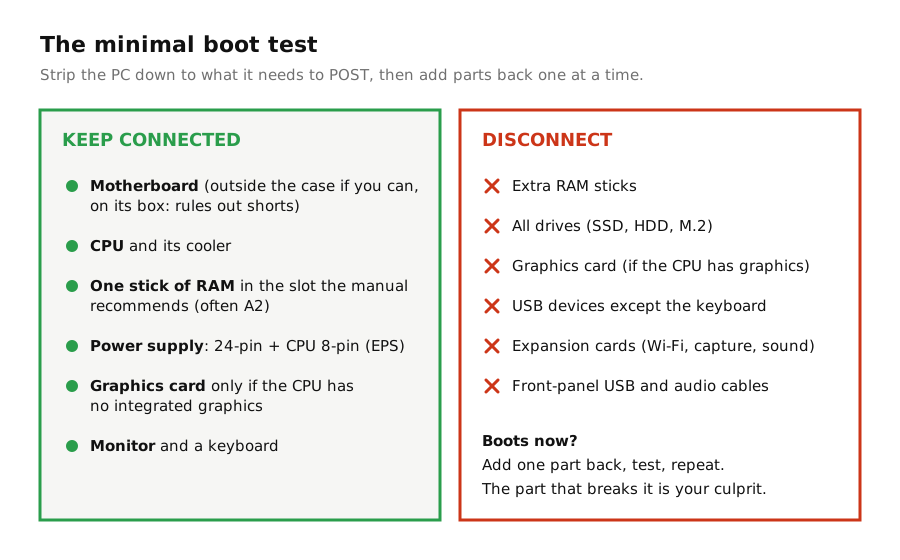
Tips:
- If you can, do this with the motherboard outside the case, sitting on its cardboard box. If it POSTs outside but not inside, something is shortingShort circuit: Electricity taking a path it shouldn't, for example through the case. The PC then shuts off to protect itself. More in our Boot & BIOS glossary → against the case, often an extra standoffStandoffs: Small metal spacers that hold the motherboard slightly above the case, so it doesn't touch the metal. More in our Boot & BIOS glossary → or a stray screw.
- To turn it on outside the case, briefly touch the two power-switch pins on the front-panel headerFront-panel header: A small group of pins on the motherboard where the case's power button, reset button and lights connect. More in our Boot & BIOS glossary → with a screwdriver tip.
- If the minimal setup still won’t POST, the suspects are down to the motherboard, CPU, the single RAM stick and the power supply. Swapping in a known-good part (borrowed, or tested in another PC) is the only reliable way to tell which.
7. Check for physical damage
Before you blame a part, take a close look:
- CPU socketCPU socket and pins: The square slot where the processor sits. Its tiny pins bend easily, which can stop the PC from starting. More in our Boot & BIOS glossary → pins (Intel boards): look at the socket at an angle under a flashlight. A bent pin can cause no POST or missing RAM channels.
- CPU pins (older AMD chips): check for bent pins on the processor itself.
- Cooler pressure: a cooler screwed down unevenly or extremely tight can cause boot problems. Tighten in a cross pattern until the screws stop, no further.
- Burn marks or a burning smell: stop and don’t power it on again until you’ve found the source.
Real cases: what other users ran into
These are real reports from PC forums, summarized in our own words, with a link to each original thread.
Real caseCore i5-10400 · ASUS Prime H410M-E · RX 7800 XTFixedCPU cable only half plugged in
On first power-on, the motherboard LEDs, fans and graphics card all lit up, but there was no picture, logo or beep. Forum members spotted in a photo that only four of the eight pins of the CPU power cable were connected. Once the owner plugged in the whole 8-pin connector, the PC started. After sorting out a separate issue with some old drives, he confirmed everything was working.
Takeaway: a split 4+4 CPU connector needs both halves. See step 2.
Source: TechPowerUp Forums
Real caseASRock B550 Taichi · Ryzen 7 3700X · G.Skill DDR4-3600FixedXMP enabled, then no boot
After a BIOS update, the PC worked fine until the owner enabled XMP. Then it stopped booting, showing code 07 on the board’s display, which he took to be a memory error. Clearing the CMOS with the button on the back panel brought it straight back. He then returned to the previous BIOS version, where XMP worked again.
Takeaway: if the PC stops POSTing right after you change a BIOS setting, clearing the CMOS is the first thing to try. See step 3.
Source: ASRock Forum
Real caseASUS TUF Z790-Plus WiFi · Core i7-14700KF · RTX 4070 TiFix not confirmed by the userA brand-new CPU the board didn't know yet
A new build gave no display, with debug lights on and the graphics card’s light switching off when the PC tried to start. The owner had reconnected every part, tested the power supply and checked the CPU socket. An ASUS representative replied that this processor is only supported from a specific newer BIOS version, and recommended updating the BIOS. The owner didn’t post back to confirm the result.
Takeaway: when a new processor goes into a board that may have shipped with an older BIOS, check the CPU support list before anything else. See step 5.
Source: ASUS ROG Forum
Frequently asked questions
What does POST mean?
POST stands for Power-On Self-Test. It’s the check the motherboard runs every time you turn the PC on, making sure the CPU, memory and graphics are working before it loads the operating system.
Can a PC POST without RAM?
No. Without working RAM, the PC will fail POST. Usually it beeps or the DRAM debug light stays on.
Can a bad power supply cause no POST?
Yes. A failing power supply can turn the fans on but not provide stable power to the rest of the system. If the minimal boot test still fails, a known-good PSU is worth trying.
Will clearing the CMOS delete my files?
No. It only resets BIOS settings, such as boot orderBoot order: The list in the BIOS that decides which drive the PC tries to start Windows from first. More in our Boot & BIOS glossary → and RAM speed. Your files and Windows installation are on your drives and aren’t affected.
Can a PC fail POST because of the monitor?
Not really. A monitor problem makes it look like the PC isn’t POSTing, even when it is. That’s why it’s worth ruling out the display first in our no display guide.
RigClinic publishes practical, step-by-step guides to diagnosing and fixing PC hardware problems, checked against manufacturer documentation and kept up to date. How we write our guides


Did this fix work for you?
Tell other readers what worked, what didn't, and which hardware you have. Comments use GitHub Discussions, so you'll need a free GitHub account to post.
Loading comments connects to giscus.app and GitHub. See our privacy policy. Please keep it friendly and on topic; spam and off-topic comments are removed.